
Appearance
Settings
The Settings page is the central control panel for your customer organisation. It is where you configure authentication, manage service accounts, set up webhooks, and define which user attributes are required for your team.
Settings are split across five tabs.
Organization
Basic information about your customer.
- Name — editable.
- Billing Contact Email — receives billing-related notifications.
- Timezone — used for invoice period boundaries and report formatting.
Click Edit to enter edit mode, change what you need, and Save.
Security
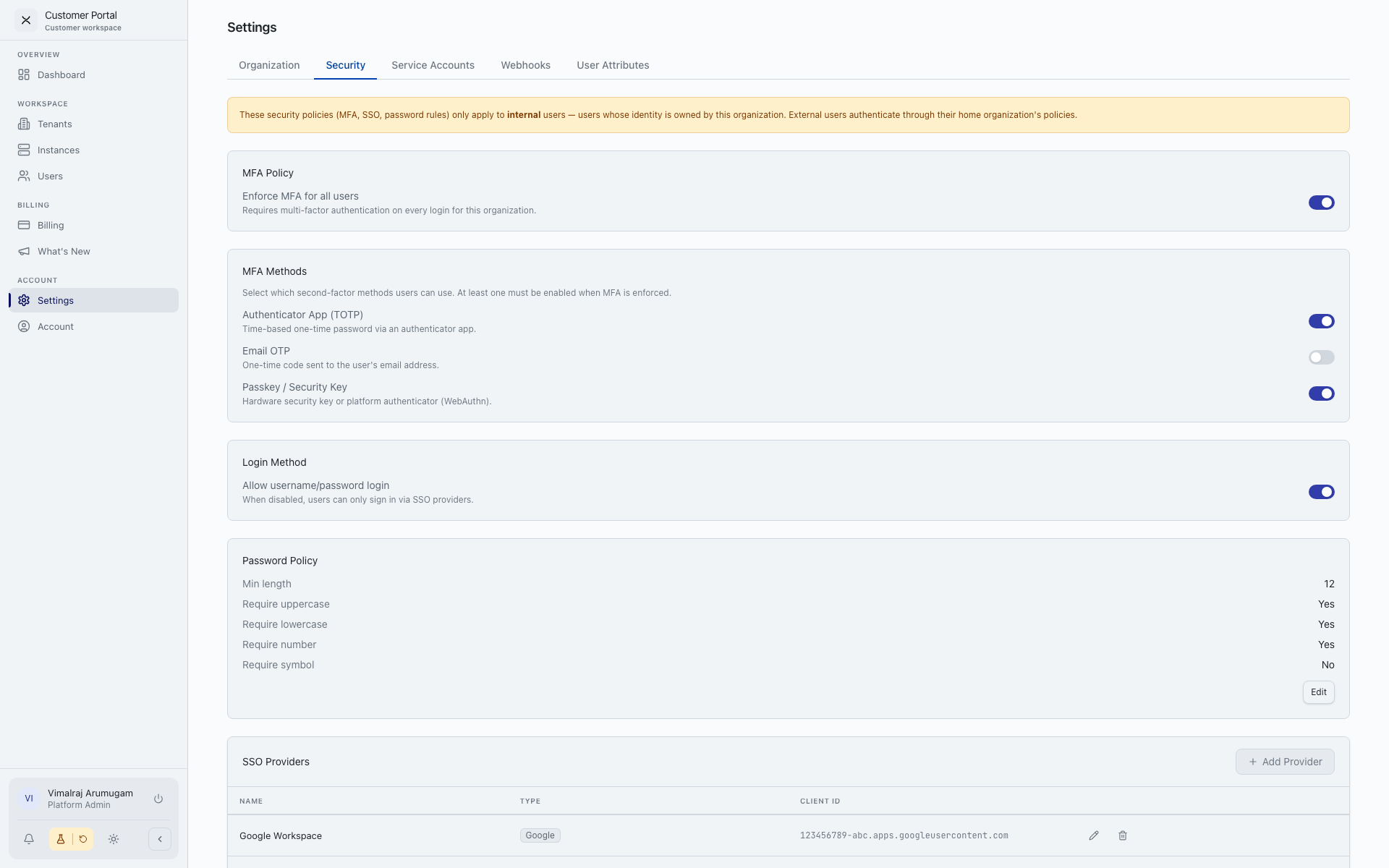
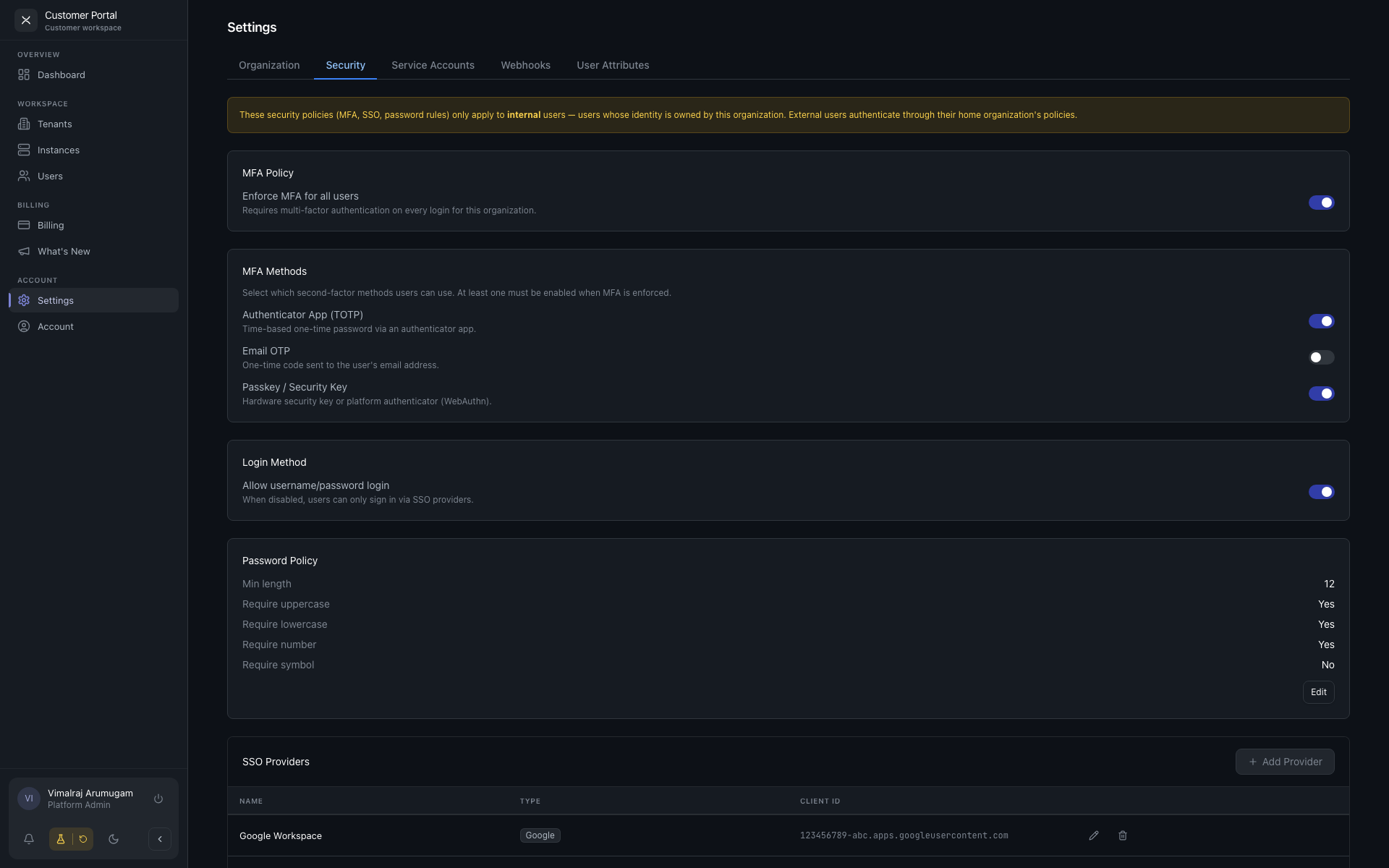
The most consequential tab — your authentication policy lives here.
Password Policy
- Minimum / maximum length.
- Require uppercase, lowercase, numbers, symbols (each is a toggle).
- Expiration — how often passwords must be changed.
These rules apply to anyone signing in with a password to your customer organisation. Updates take effect on the next password reset.
MFA Policy
- Enforce MFA — global toggle. When on, your users must enrol in MFA before they can sign in. When off, MFA is optional.
- Allowed MFA Methods — checkboxes for TOTP (authenticator app), Email OTP, SMS OTP, and Security Keys / Passkeys. Tick the ones you allow.
Username / Password
- Allow Username/Password — toggle. When off, your users must use an Identity Provider (Google, Microsoft, custom OIDC) to sign in. There is no password fallback in that case.
Identity Providers
A table of external IdPs your organisation has registered.
| Column | Notes |
|---|---|
| Provider name | Display label. |
| Type | Google / Azure / Custom OIDC. |
| Client ID | Truncated. |
| Status | Enabled / disabled. |
| Actions | Edit / Delete / Test. |
Click Add IdP to configure a new provider. The modal asks for:
- Type — Google / Azure / custom OIDC.
- Name — what users see on the sign-in screen.
- Client ID and Client Secret — issued by the IdP.
- Azure Tenant ID — for Azure.
- Custom Scopes — for custom OIDC providers.
After creation, the Test button performs a trial OIDC exchange so you can validate before enabling for users. Secrets are not displayed after creation — if you lose the secret you need to rotate it on the IdP side.
Service Accounts
Machine identities for API and automation use.
| Column | Notes |
|---|---|
| Account name | |
| Created | |
| Last used | |
| Actions | View / Copy secret, Revoke. |
Click Create to register a new service account. The secret is shown once at creation — copy it then. If you lose it, revoke the account and create a fresh one.
Under each service account, grants show which tenants and roles the account can act against.
Webhooks
Outbound HTTP endpoints subscribed to platform events.
| Column | Notes |
|---|---|
| Endpoint URL | |
| Event types | Count subscribed. |
| Status | Enabled / disabled. |
| Actions | Edit / Test / Delete. |
Click Create to add a webhook. The modal asks for:
- URL — your endpoint.
- Event types — multi-select of platform events.
- Auth headers — any custom headers to include on delivery (e.g. an API key).
Per-webhook delivery history is shown so you can see retries and failures, and trigger redeliveries.
User Attributes
The list of custom profile fields available in your customer organisation. The set of attributes is defined platform-wide by Exto; you choose which to enable, in what order, and whether they are required.
| Field | Description |
|---|---|
| Key | The attribute's machine name. Read-only. |
| Label | The display label. |
| Type | text / number / select / multi_select / date / switch. Read-only. |
| Required | Toggle. |
| Enabled | Toggle. |
| Order | Display order. |
Enabled attributes appear on the Complete Profile flow for new users in your organisation and on their Account page for editing.
Permissions
The entire Settings page requires manage_settings. If you do not have it, the Settings entry will not appear in your sidebar.