

Appearance
Releases
The Releases section is where you author releases, send them through the pipeline, approve them, and watch them deploy. See Releases & Deployments for the conceptual model.
This page covers the release list and the release detail page. For creating a new release, see the section below. For the global pipeline configuration, see Release Configuration.
List page
Toolbar
- Search — matches release name, version, and release notes text.
- Status — dynamically built from the release statuses present (Draft, In Progress, Paused, Completed, Failed, …).
- Type — Feature / Hotfix / Config.
- Clear — appears when any filter is active.
- New Release button (top right).
- Count chip — filtered vs. total ("3 of 12").
Columns
| Column | Notes |
|---|---|
| Release | Name or version, link to detail. |
| Type | Feature / Hotfix / Config badge. |
| Status | Lifecycle status badge. |
| By | Avatar of the initiator. |
| Created | Relative timestamp. |
| Deployed | When the release entered in_progress. |
| Completed | When the release finished. |
The list is read-only — every interaction is a navigation to detail.
Creating a new release
Click New Release. The page is a two-step wizard: Form → Preview.
Step 1 — Form
Release Setup
Pick a Release Type:
| Type | Meaning |
|---|---|
| Feature | New functionality. Deploys across all pipeline stages. |
| Hotfix | Critical fix. Auto-deploys and pauses pending feature releases. |
| Config | Environment-variable changes only. No image update. |
Version Bump (Feature only)
Three buttons: Patch, Minor, Major. The current version and the computed next version are shown so you can see what you are picking.
Hotfix releases always patch-bump regardless of selection. Config releases use an auto-incrementing counter (Config #1, #2, …).
Release Notes
A rich-text editor with character count.
- Required for Feature and Hotfix.
- Optional for Config.
- Supports images, lists, formatting.
- Toggle Focus Mode to expand the editor to full height.
Service Images
The right-hand column lists every service known to the pipeline.
- Use the checkboxes to include or exclude a service in this release.
- For each included service, enter a Docker image tag or URL.
- Click Current in production to pre-fill the image with what is currently deployed.
- For Config releases, image inputs are hidden and all services are auto-included.
When the form is valid, click Preview.
Step 2 — Preview
Screenshot
Wizard Step 2 — Preview: the read-only summary with Release Summary, Services, Env Changes (with Create/Update/Delete badges), and the Deployment Pipeline visualisation.
The preview is the read-only summary of what you are about to ship.
- Release Summary — auto-generated name (e.g. "Release v25.1.0" or "Config #42"), type, version, semver bump.
- Services — included services with their target images.
- Env Changes — Create / Update / Delete deltas since the last deployed release.
- If this is a Config release and no changes are detected, a warning appears: the backend will reject the release.
- Deployment Pipeline — numbered stages, environments inside each stage, instance counts, parallelism indicators.
- Release Notes — rendered rich text.
Click Back to edit, or Create Release to submit. On success you land on the release detail page.
Validation
- Services: at least one must be included (Feature / Hotfix).
- Images: every included service requires a target image.
- Notes: required for Feature / Hotfix.
Errors appear in red alert boxes and the submit button is disabled until they are fixed.
Release detail page
Header
- Back link to Releases.
- Release name, type badge, status badge.
- A button to view release notes (modal).
- Action buttons appropriate to the status:
- Draft → Deploy (primary).
- Paused → Resume (primary).
- In Progress → Cancel Release (danger).
- Completed / Failed / Rolled Back / Cancelled → Archive (secondary).
- Archived (within 30 days) → Unarchive (secondary).
If archived, a notice shows the archive date and the unarchive deadline. After the deadline, per-service config, environment-version pin, and logs are permanently purged.
Release info
Version (or name for Config), Initiated By avatar, Created and Deployed timestamps.
Pipeline visualisation
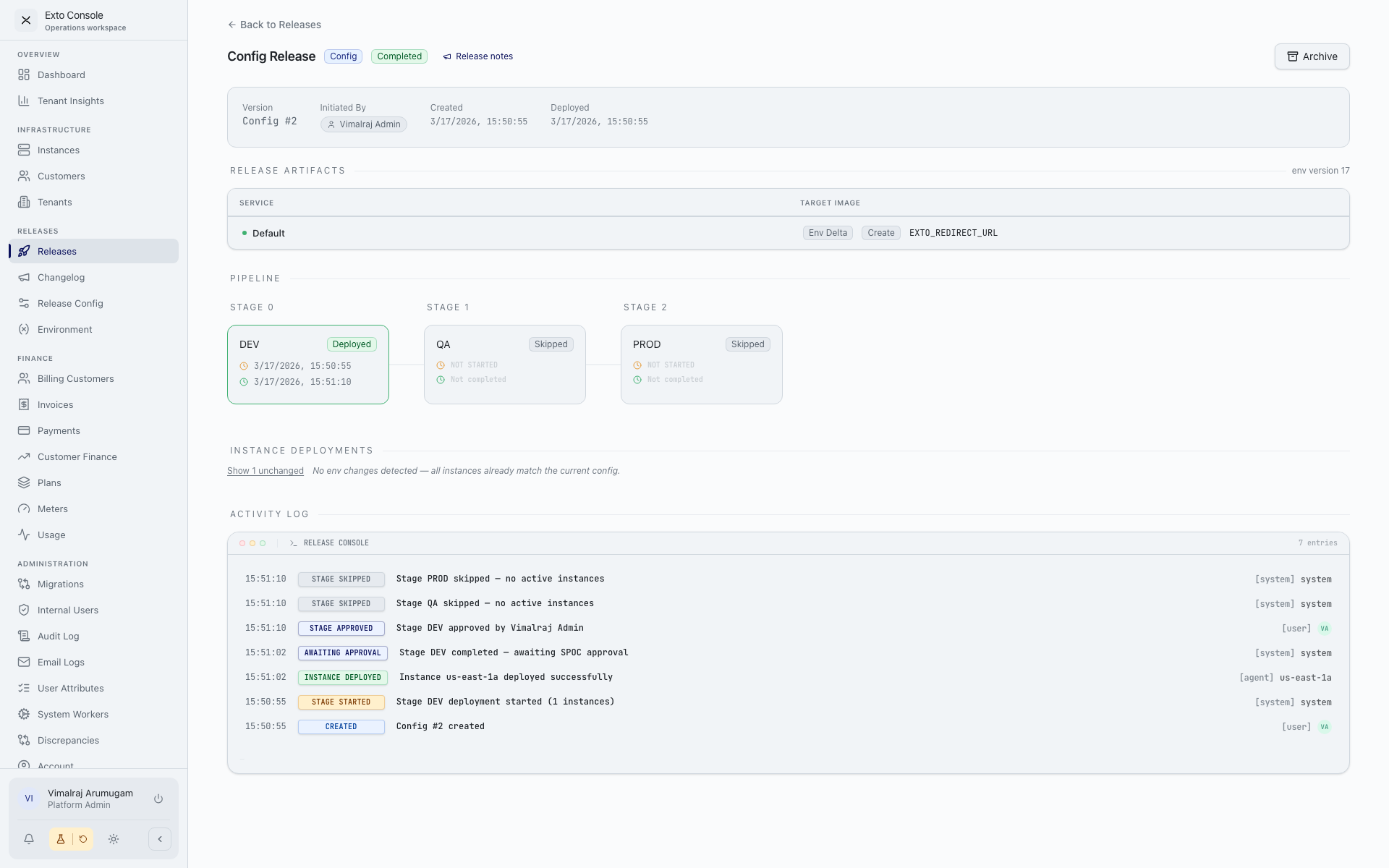
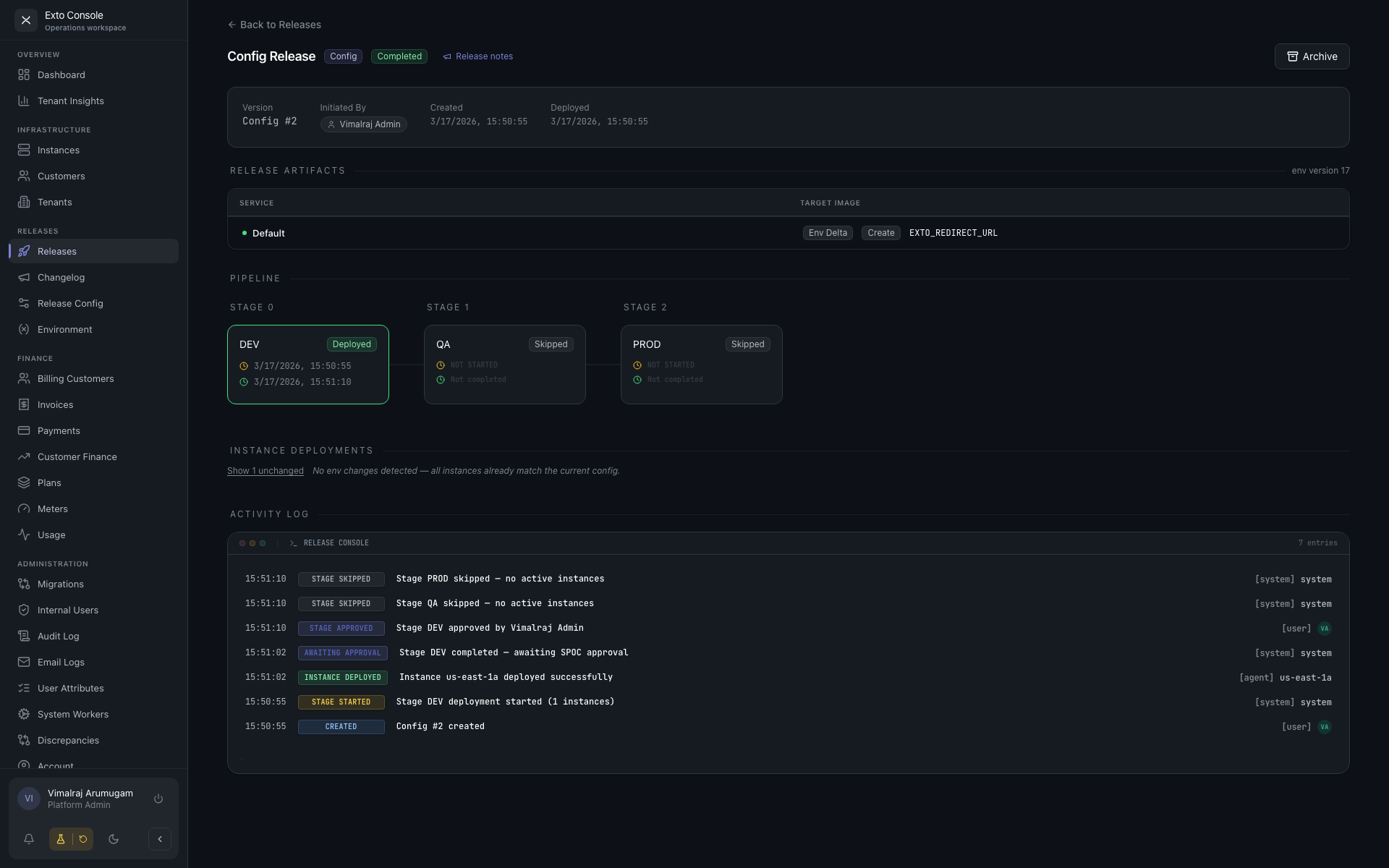
A horizontal flow of stages, numbered. Each stage contains environment boxes. Box borders reflect state:
| Border colour | Meaning |
|---|---|
| Green | Deployed |
| Yellow | Deploying or paused |
| Red | Failed |
| Blue | Awaiting approval |
| Purple | Awaiting trigger |
| Grey | Pending |
Inside each environment box you see the status badge, started time, completed time, and Approve / Trigger buttons when an action is required.
Instance deployments
Below the pipeline, each environment expands to a list of instances.
Per-instance row:
- Instance name (link to instance detail).
- Status: pending / deploying / deployed / failed / rolled_back / skipped.
- Optional message (e.g. error reason).
- Action buttons:
- Failed → Retry, Skip.
- Deployed → Rollback.
- Rolled Back → Skip.
- Skipped → display only.
Expand a row to see per-service deployment info — target image, previous image (struck through if changed), plus a snapshot sub-table for environment variables, with changed rows highlighted.
A toggle lets you show or hide unchanged instances.
Release artifacts
The full bundle as a table: services with target images, environment variables in the snapshot (key + value or secret ref), and the delta from the previous release.
Approval status
If any stage is awaiting approval, this section lists each environment, the approvals received (with who approved and when), and outstanding approvals.
Activity log
A terminal-style window in the bottom of the page. Reverse-chronological list of events:
- Timestamp.
- Action type badge (failure red, warning orange, success green, info blue).
- Message — instance/user IDs are auto-replaced with human-readable names.
- Actor avatar (User or Agent).
The activity log is the source of truth for what happened to the release.
Auto-refresh
While a release is in_progress (or a stage is deploying / awaiting approval / awaiting trigger), the page auto-refreshes every 5 seconds. There is no manual refresh button — reload the page if you need to.