

Appearance
Customer Portal Overview
The Customer Portal is the workspace your customers see when they sign in. It is scoped to a single customer at a time and shows only that customer's tenants, users, billing, and configuration.
If you belong to more than one customer organisation, a customer switcher in the header lets you jump between them without signing out.
Sidebar map
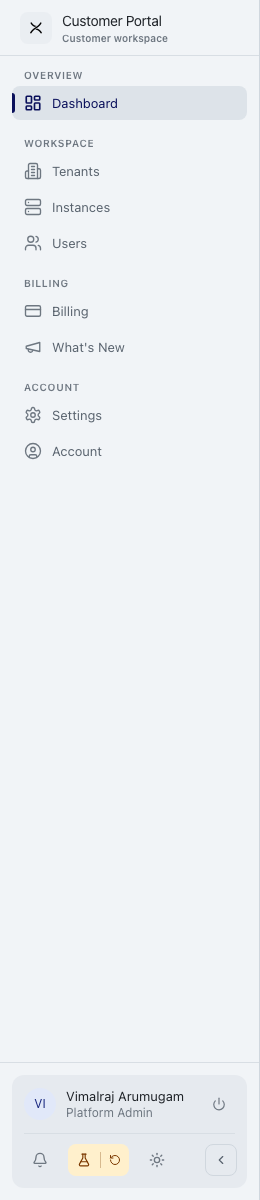
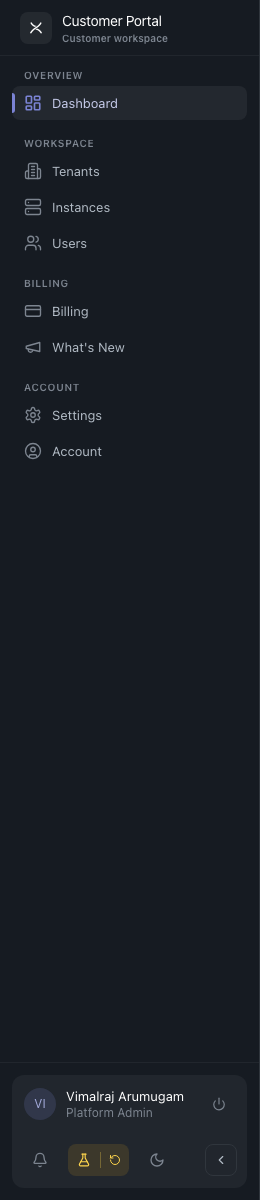
The sidebar is short and focused. It is grouped into four sections:
| Section | What's there |
|---|---|
| Overview | Dashboard — status at a glance. |
| Workspace | Tenants, Instances, Users — the things you work with day-to-day. |
| Billing | Billing, What's New — invoices, usage, and product updates. |
| Account | Settings, Account — organisation-wide configuration and personal account. |
If you are a member rather than an admin or owner, the sidebar is replaced by a smaller top-bar view, and pages you do not have access to are hidden.
Who sees what
Pages and actions are gated by portal roles and portal actions (view_dashboard, view_tenants, manage_tenant_users, view_billing, manage_settings, view_changelog). When a button is missing, the most likely reason is that the corresponding action is not granted to your role.
The three standard portal roles are:
- Owner — full control of the customer. Manages tenants, users, billing, and settings.
- Admin — manages tenants, users, and some of the customer configuration.
- Member — limited access, typically used for tenant-scoped users.
See Roles & Permissions for the underlying model.
Common patterns
The Customer Portal uses the same conventions as the Admin Console:
- Search and filter at the top of each list page.
- Status badges in green / orange / red / grey.
- Destructive actions confirm in a modal.
- Detail pages open from clicking a row.
Customers do not see the platform-wide pages (cross-customer dashboard, audit log, system pages, finance dashboards across all customers). Those are operator-only.